Quick answer: Open Contact Export in WAContact and choose a format and contact source. In Label Filter, remove All Labels, select the labels you want to export, then click Export Contacts. Open the downloaded file to review the contacts.
Labels let you download WhatsApp contacts for a specific task without starting with an account-wide list. Select a single label for one category of contacts, or select several labels when you need one file for a broader task.
How to export contacts from one label
Open WAContact while signed in to the WhatsApp Web account containing your labels. Choose All Contacts when you need contact information, or Chat List when you also need available recent-conversation fields. Select Excel, CSV or VCard according to how you will use the file.
Next, select the label:
- Open Label Filter.
- Remove All Labels and any previously selected labels.
- Choose the label whose contacts you want to export.
- Review the account-type and country filters, then click Export Contacts.
Remove All Labels when filtering by a specific label. Leaving it selected disables named-label filtering, even if you also select individual labels.

Open the downloaded file and check the names and phone numbers. If you chose Chat List with Excel or CSV, you can also review available recent-message fields alongside the contact details.

The Chat List fields include Is Read, Last Message, Last Message Type and Last Message Time when available. Use these when your task involves reviewing recent conversations; use All Contacts when your focus is the contact record itself.
How to export contacts from multiple labels
To select several labels, use the same Label Filter control:
- Remove All Labels.
- Select each label required for your task.
- Expand the selector again to check the complete selection and remove anything you no longer need.
- Confirm the source and other filters, then click Export Contacts.

The compact control may show one label followed by +1 or another number. This counts additional selected options hidden from the compact view, not contacts. You can open the selector to check their names.
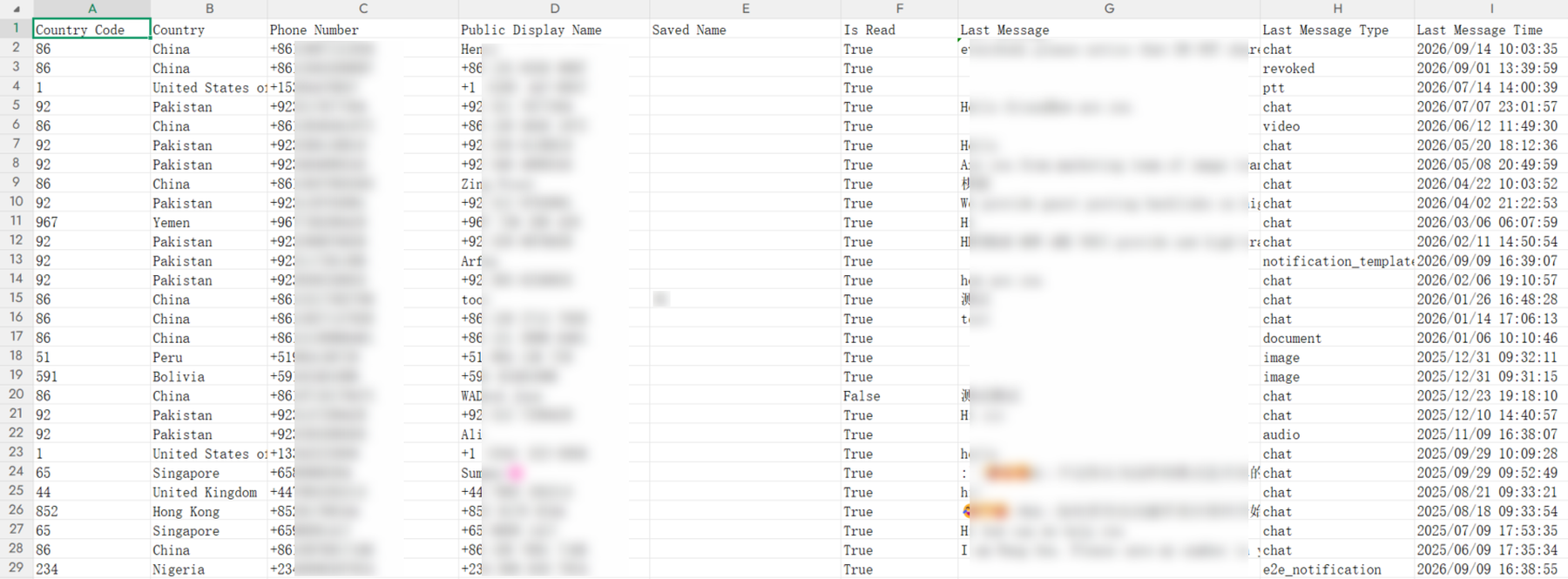
Review the downloaded file against the contacts you need for the task. If you need a separate list for each label, export one label at a time instead. The current export does not write the selected label names into a dedicated label column.
When comparing exports, keep the source, format and other filters unchanged while adjusting the label selection. This makes it easier to identify which setting changed the result.
Combine labels with Business and country-code filters
You can narrow the selection further before you download WhatsApp contacts. For a regional handoff, combine the target label with a country-code filter. To focus on business accounts, select Business Only.
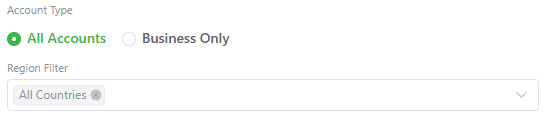
- Business Only keeps contacts WhatsApp identifies as business accounts. A contact having a label does not make it a business account.
- Region Filter uses international phone-number prefixes, not a person's current location.
- All Accounts and All Countries let you check the label selection without these additional restrictions.
Start with the label selection, then add one condition at a time. If a contact disappears after enabling Business Only, check its account type. If it disappears after selecting a country, check its international phone-number prefix.
Troubleshoot missing labels or unexpected results
| What you notice | What to check | Next action |
|---|---|---|
| The expected label is missing | Account and loading state | Confirm the WhatsApp account, let WhatsApp Web finish loading, then reopen WAContact. |
| The export looks broader than the chosen labels | All Labels remains selected | Remove All Labels, retain only the labels you need, and export again. |
| The result is empty or smaller than expected | Additional business or country filters | Try All Accounts and All Countries, then add the required conditions individually. |
| Results differ between exports | Contact source or saved filter settings | Keep the source and other conditions consistent when comparing files. |
| Recent-message fields are missing | All Contacts or VCard was selected | Choose Chat List with Excel or CSV for available recent-chat fields. |
If a particular contact is still missing, check its label assignment in the signed-in WhatsApp account. Try exporting that single label with the source held constant and unnecessary filters removed. This is easier to inspect than a selection with several conditions applied at once.
Choose a format and organize exported files
Use Excel for spreadsheet review, CSV for compatible tabular-data processing, or VCard for contact-card import. Labels filter the contacts before the file is generated; the current export does not include the selected label names as a separate column.
For independent lists, select and export one label at a time. Name each file using the label name and export date, keeping the file extension unchanged. This makes the files easy to identify without requiring a label column.
WAContact creates the file locally in the browser extension workflow. Export only contacts you are authorized to use, and share only the information needed for the task.
Frequently asked questions
Can I export contacts from several WhatsApp labels at once?
Yes. Remove All Labels, select the labels you need, and export. Expand the selector to review every selected option before proceeding. For separate files organized by label, export each label individually instead.
Why can't I find a label, or why is the export empty?
First confirm that the label belongs to the current WhatsApp account and wait for WhatsApp Web to finish loading. Reopen WAContact if needed. If the label is available but the result is empty, check the contact source and remove unnecessary Business Only or country-code filters before retrying.
Will the exported file include the label names?
The current export uses labels to filter the contact selection but does not add the selected label names as a separate output column. To keep lists organized by label, export each label separately and include its name in the file name.
How can I save a separate contact file for each label?
Select one target label, export its contacts, and save the file using the label name and export date. Switch to the next label and repeat. Keep the source and other filters consistent if you plan to compare the files, and check for duplicate phone numbers before combining them.
Choose the labels that match your task
Select the labels you need, add relevant filters, then export and review the file. Use a single-label selection for a focused list, multiple selections for one combined export, or separate exports when each label needs its own file.
When you download WhatsApp contacts, a clear selection and a useful file name make the result easier to review, hand off and find again.
How to Download WhatsApp Numbers to Excel and Clean Your Contact List
Turn a downloaded contact file into a usable Excel list: preserve complete phone numbers, build a display-name column and review duplicates before saving.
How to Export WhatsApp Contacts from WhatsApp Web to Excel, CSV or VCard
A complete WhatsApp Contact Export workflow for choosing a contact source, applying filters and creating a useful local file with WAContact.