Quick answer: Export your contacts from WAContact as VCard or CSV. VCard can be imported directly; for CSV, change the name-column header to
Name, otherwise Google Contacts uses phone numbers as names by default. Open Google Contacts, click Import, select the file and click Import to confirm. No file-format conversion is needed.
A WhatsApp contact extractor provides the contact file for this workflow. Google Contacts then imports that file into the Google account you choose. The practical goal is to make the contact records available in your address book, rather than leave them only in a downloaded file.
Before you begin
Have WhatsApp Web open in desktop Chrome, with WAContact installed and signed in to the account containing the contacts you need. Also sign in to the Google account where you want to store those contacts.
Check the destination account before importing, especially if you use separate personal and work Google accounts. The file will be added to the account currently open in Google Contacts.
Decide which contacts belong in this address book. You can narrow the export in WAContact before downloading it. If you only need one set of contacts, importing both the CSV and VCard versions of that same set is unnecessary and can create duplicate records.
This workflow uses CSV (.csv) or VCard (.vcf). An Excel workbook (.xlsx) is useful for spreadsheet work, but it is not the direct import format used here.
Export a CSV or VCard file from WAContact
Open WAContact while WhatsApp Web is available and choose Contact Export.
- Select CSV or VCard as the file format.
- Choose All Contacts or Chat List according to the contact source you need.
- Apply Business, country-code or WhatsApp Label filters if you only want part of that source.
- Click Export Contacts and locate the downloaded file.
All Contacts focuses on contact records available to the current WhatsApp Web session. Chat List focuses on individual contacts represented in your chat list. Pick the source before you export so the imported address book matches the intended scope.
Google Contacts accepts both CSV and VCard files exported by WAContact. Use VCard as downloaded. For CSV, set the name-column header to Name before importing so names appear in the correct field. You can also edit contact details or remove unwanted rows before importing, if needed.
The following sections are alternative routes. Follow the VCard steps for a .vcf file or the CSV steps for a .csv file.
Import the VCard file into Google Contacts
1. Open Import and select the VCard file
Open Google Contacts in your browser by entering contacts.google.com. Confirm the account shown in the profile menu, then click Import in the left sidebar.
Click Select file and choose the .vcf file downloaded from WAContact. In this example, the selected file is named All Country.vcf. Your file name may differ.
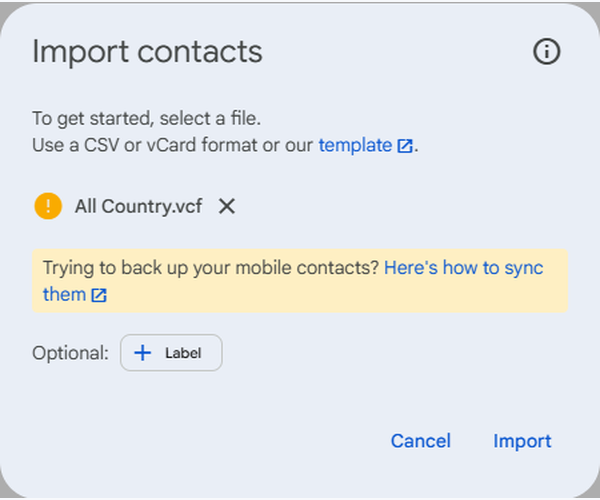
You can use the optional Label control to group the imported contacts in Google Contacts, making them easier to find later.
2. Confirm the import and inspect the contacts
Click Import at the bottom of the dialog. After processing finishes, inspect the imported records.
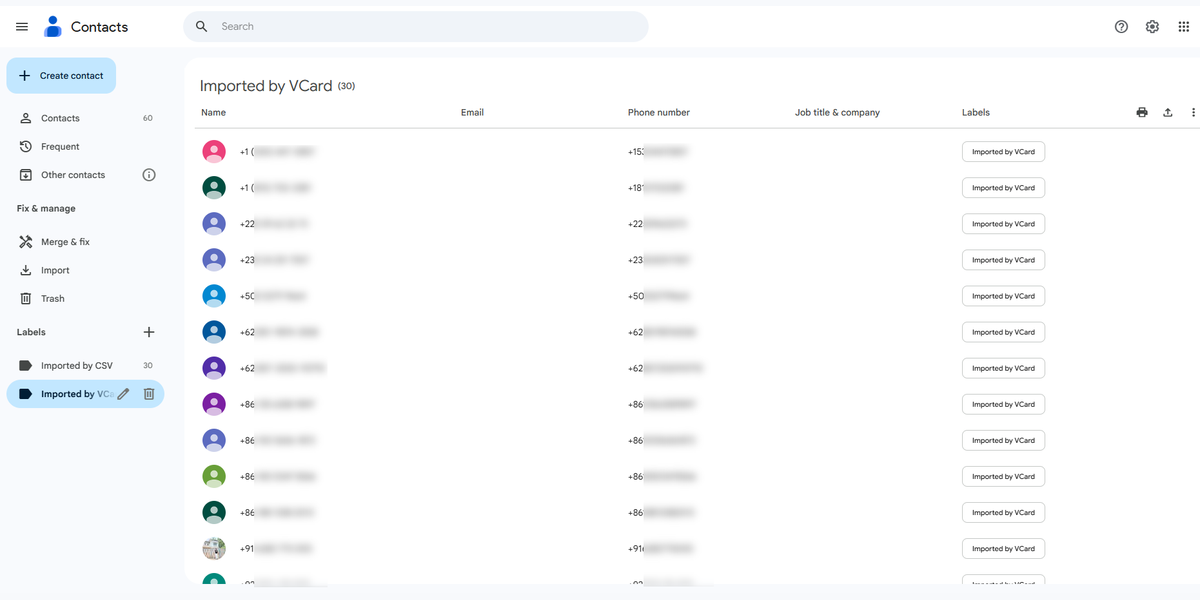
Open a few contacts to check their names and telephone numbers. If the source record only contains a number, you can add a recognizable name in Google Contacts.
Import the CSV file into Google Contacts
1. Set the name-column header to Name
Start with the CSV downloaded from the WhatsApp contact extractor. Before importing, change the header of the column containing contact names to Name. Otherwise, Google Contacts uses phone numbers in place of names by default.
- Open the CSV in a text editor or spreadsheet application.
- Find the column containing the names you want to display in Google Contacts.
- Change that column's first-row header to
Name, leaving the names beneath it in place. If it already saysName, keep it as it is. - Save the file as CSV (.csv), preserving telephone numbers as text, including their
+prefix and country codes.
Only the name-column header needs this adjustment for name recognition. Editing individual names, removing rows or making other content changes is optional. Keep a copy of the original export while you work.
2. Select the CSV file
Open Google Contacts, click Import, click Select file, then choose the CSV you just saved.
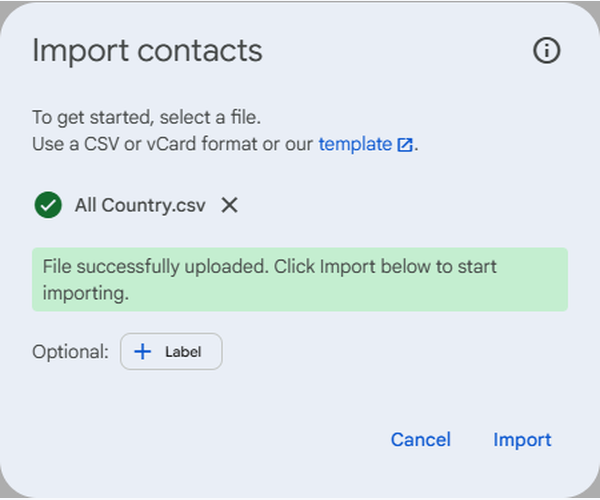
3. Click Import and review the result
Click Import and wait for the resulting contact list. Check that you are viewing the newly imported records.
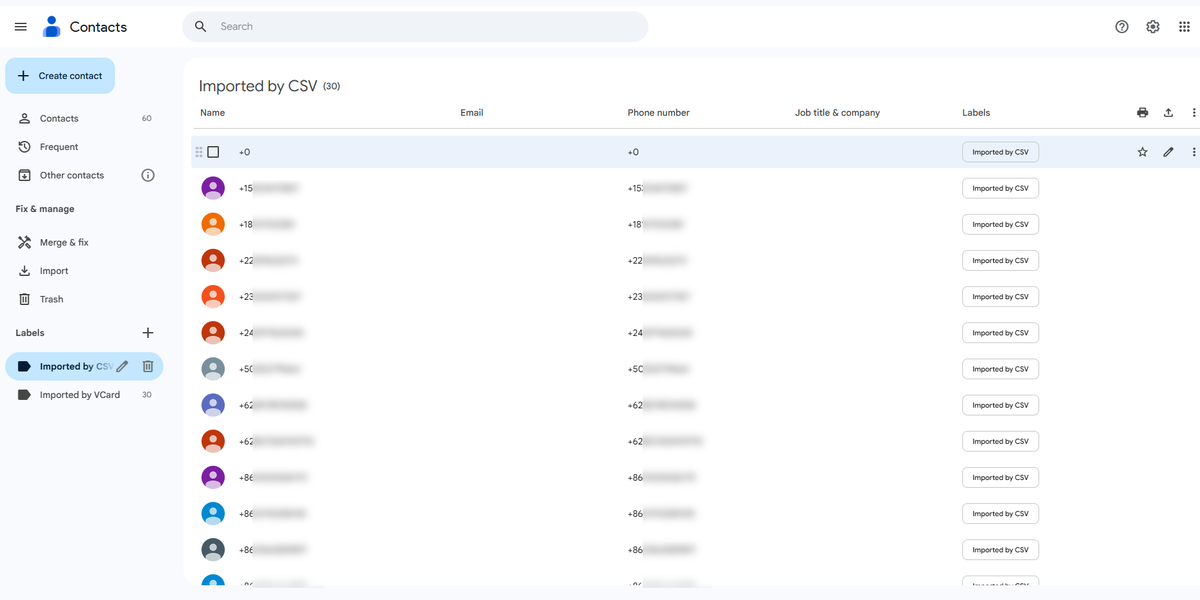
Check a contact whose name was present in the CSV. If only its number appears, check that the name column is headed Name and that the row contains a name before importing again.
Check the imported address book
Before using the imported contacts, make a short review:
- Count: compare the imported contact count with the records you intended to transfer.
- Names: check whether available names imported as expected. A record originally identified only by a number may still need a meaningful name.
- Phone numbers: confirm the international country code and the rest of the number. Review empty or placeholder-looking entries such as +0.
- Duplicates: use Merge & fix in Google Contacts to review and merge duplicate contacts.
- Scope: confirm that the file contains the people you intended to add, especially if source or filter choices changed.
Should you choose CSV or VCard?
| Format | Useful when | Preparation for this workflow |
|---|---|---|
| CSV (.csv) | You also want to inspect or edit contacts as rows and columns | Change the name-column header to Name, then save as CSV and import |
| VCard (.vcf) | You want a contact-card file for address-book import | Import the original WAContact file directly; no conversion required |
Choose VCard for the shortest route from export to import. Choose CSV when you want to review or edit contacts in a table first. With CSV, remember the Name header before saving your file.
Local export and the Google import are separate steps
WAContact creates the export file in the browser extension workflow. When you subsequently choose that file in Google Contacts, you submit it to Google for import into the selected account.
Only transfer contacts you are authorized to use and store in that account. Decide whether a work or personal address book is appropriate, and keep the downloaded file only as long as you need it.
Frequently asked questions
Do I need to convert the file or rename CSV headers?
No file-format conversion is needed. WAContact's VCard export can be imported directly. For CSV, set the name-column header to Name; otherwise Google Contacts uses phone numbers as names by default. Save and import the CSV. You may also edit names or remove unwanted records before importing; these additional changes are optional. If you exported Excel instead, choose CSV or VCard in WAContact to create an importable file.
Is CSV or VCard better for Google Contacts?
Choose VCard if you want to import the downloaded file without editing it. Choose CSV if you prefer reviewing or editing the contact list in a table. For CSV, change the name-column header to Name first. Both formats let you bring contact details into Google Contacts.
What if I import the same contacts twice?
You may get duplicate contacts. Use Merge & fix in Google Contacts to review and merge matching records. For a single transfer, choose either CSV or VCard and import that file once.
Will Google Contacts stay synchronized with WhatsApp?
No. Import adds the contacts saved in the file at that time. To bring over later changes, export an updated file and import it when needed, then review duplicates with Merge & fix.
Bring your contacts into the address book you use
Choose your contacts, export VCard or CSV, then import the file into Google Contacts. VCard is ready to use as downloaded; CSV needs the name-column header set to Name for names to be recognized. Neither route requires converting the file to another format.
Use a WhatsApp contact extractor to choose the right source and contact scope first. Then check the imported names and phone numbers in the correct Google account. That final review turns an accepted file into an address book you can actually use.
How to Export WhatsApp Contacts from WhatsApp Web to Excel, CSV or VCard
A complete WhatsApp Contact Export workflow for choosing a contact source, applying filters and creating a useful local file with WAContact.
WAContact vs WA Web Plus: Which Contact Export Workflow Fits You?
A practical comparison of a dedicated contact exporter and a broader WhatsApp Web productivity extension.